The Timeline
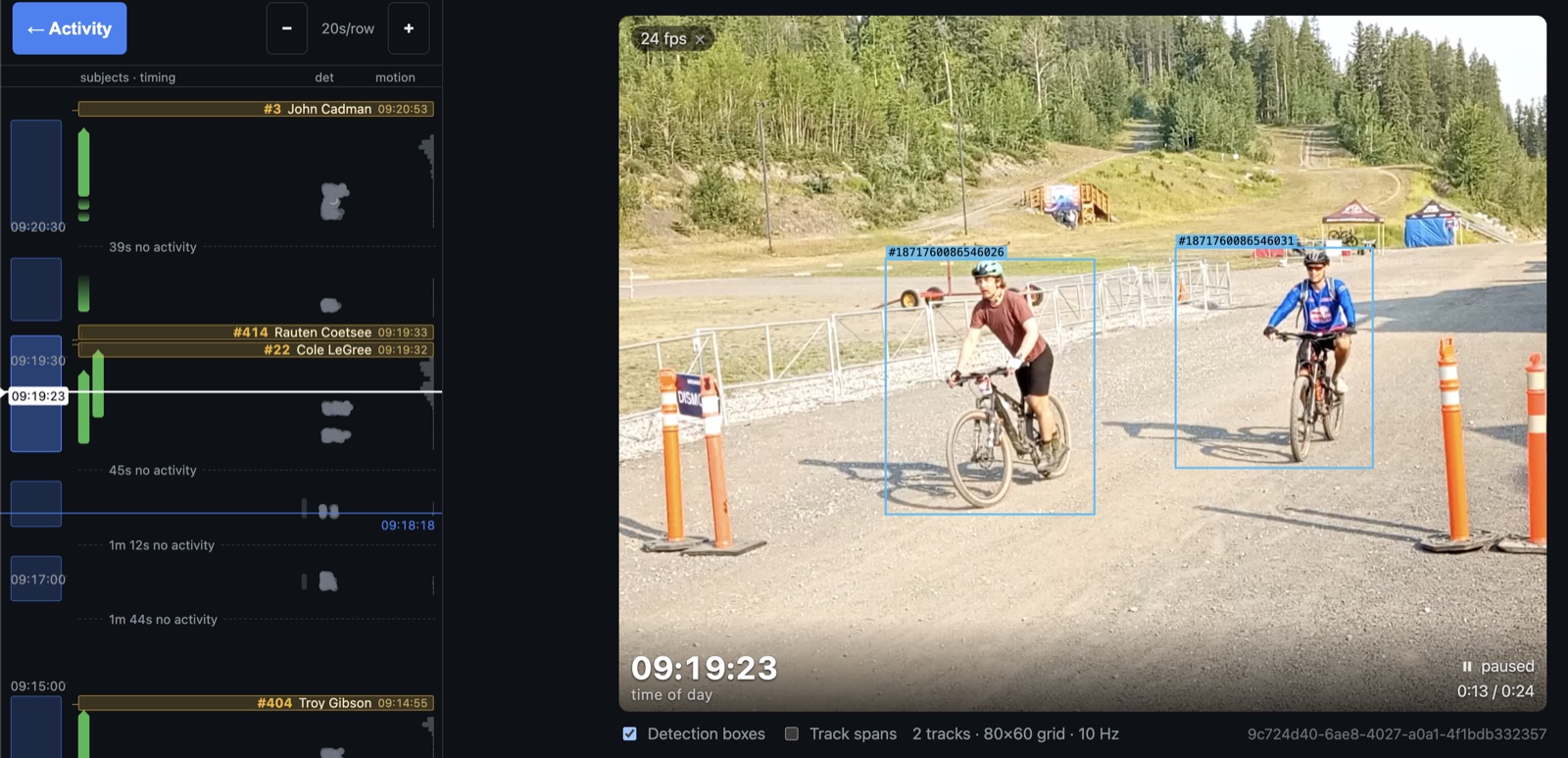
The timeline is the review view for a whole recording: every stretch of footage the camera captured, every racer the system found in it, and every time the timing system recorded — all on one vertical axis, with the player beside it. Open it from a recording's Timeline view.
1. Reading the axis
Time runs downward into the past — the newest moment is at the top, and scrolling down walks backwards through the recording. Every label on the axis is a time of day, so the way to answer "when was this?" is always to read the clock, never to measure the distance between two things.
That's because the axis isn't linear. Stretches where something happened are drawn to scale; stretches where nothing did get folded away, so a mostly-idle morning doesn't scroll for miles.
Zoom: how much time a screen holds
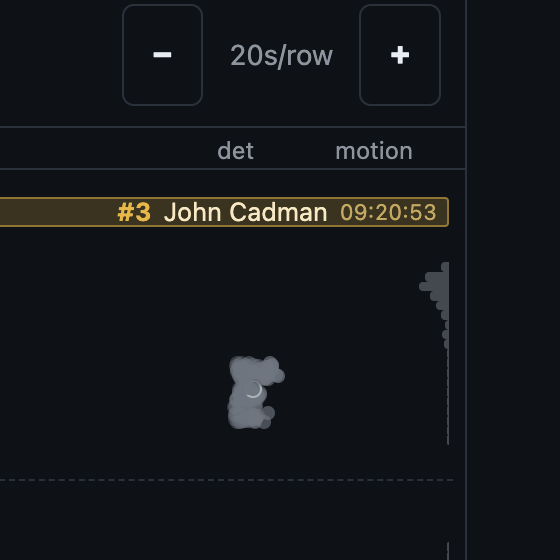
The readout between − and + is the scale — 20s/row means one row of the timeline covers twenty seconds of footage. Zooming keeps the middle of the view pinned, so the thing you were looking at stays where it was.
Zooming in stops at one thumbnail per row (10 seconds), which is as fine as the data goes. Zooming out stops at about half an hour on screen — past that the view can't group racers for the whole window, so it refuses rather than showing you a half-filled lane.
The time column: clock and camera coverage
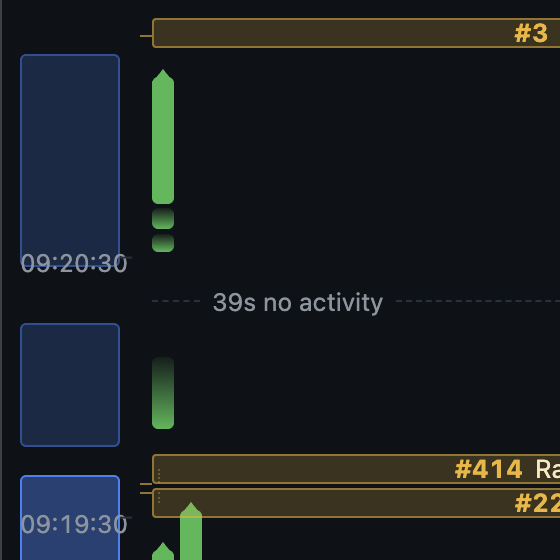
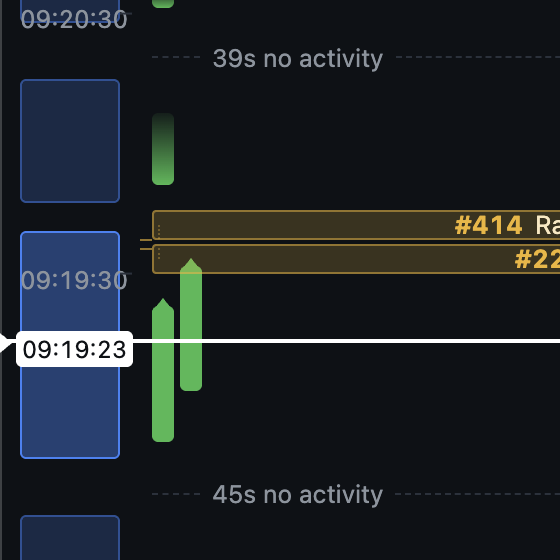
The clock labels sit on top of the coverage bar, because coverage is a property of the axis itself: a blue block is a stretch the camera was actually rolling for. Grey means footage that was recorded and discarded; a brighter, outlined block is the one currently loaded in the player.
Time with no block behind it is time with no video — the racer may still be there in the timing data.
Quiet time is folded away
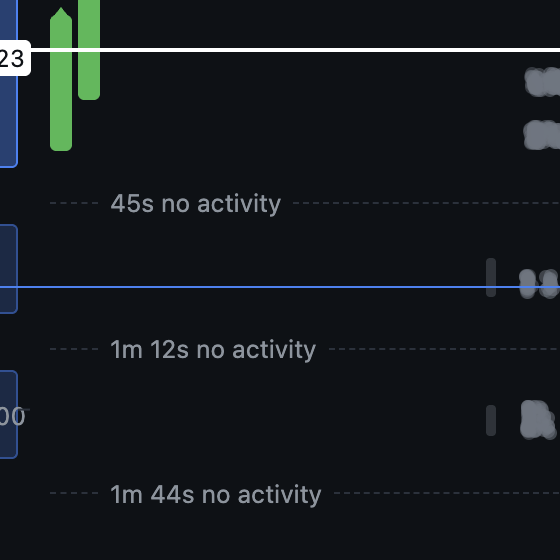
Any stretch of 30 seconds or more with no video, no motion and no recorded time collapses to a dashed marker naming its length — 45s no activity. Shorter gaps are left alone and stay to scale.
This is the one thing to keep in mind while reading the timeline: a marker is a fixed height no matter how long the gap really was, so two bars sitting close together on screen aren't necessarily close together in time.
2. What's on the axis
Three kinds of thing share the column: racers the system found in the footage, times the timing system recorded, and the raw evidence both were derived from.
Subjects — one bar per passage
A green bar is one racer's passage through frame: it starts at the bottom (when they appeared) and ends at the top (when they left). Riders who were in frame at the same time get side-by-side lanes, so two bars abreast means two racers at once, not one racer twice.
A small triangle cap at the top edge means the rider left the frame cleanly. A bar that instead fades out at the top is one whose track was lost mid-frame — it stopped rather than ended. A dashed outline means no person detection ever landed on it: the shape moved like a racer, but nothing confirmed it, so it's shown and flagged rather than counted. A hatched section is footage two riders share, where the sensor fused them into one blob.
Hover any bar for its times, tracks and any bib read.
Timing crossings
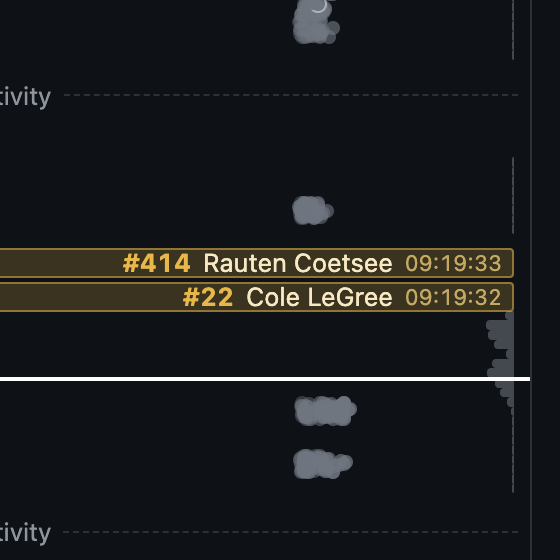
Amber bars are times recorded by the timing system at this recording's timing point — bib, name, and the recorded time. They run the full width and their text is right-aligned, which keeps the left side clear so you can read the subject bars underneath them.
A crossing is an instant, but a bar has height, so a run of crossings gets nudged apart to fit. When that happens the true instant keeps a small tick in the gutter with a dotted leader back to its bar. A red-edged bar is a DNF or DSQ. If a pack is too tight to name everyone, the tail becomes a + N more · zoom in row — click it and the view zooms until those names fit.
These only appear once the recording has a race and timing point assigned. No amber bars usually means no race assigned yet.
The evidence gutter: det and motion
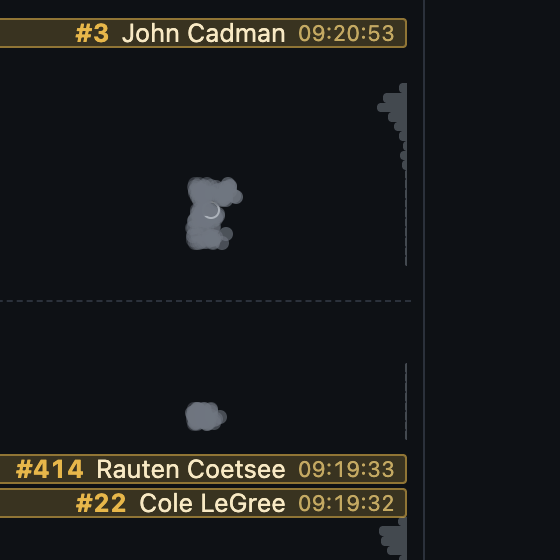
The dim column on the right is the raw evidence the rest was built from. Under det, each dot is one detection, placed horizontally by confidence — the further right, the more certain. A dot with a bright ring around it is one a bib number was read from. Zoomed out, the dots become density bars instead: wider means more detections.
Under motion, one bar per second of how much the frame moved, growing leftward from the column edge. It's there so you can see something happened even where nothing was recognised. A narrow dim column just left of the dots holds motion the system decided was never a racer — spectators, vehicles, wind.
3. Playing footage
Click anywhere on the timeline to play. A click inside a covered stretch starts the video at that instant; a click in a gap snaps forward to the next footage, on the grounds that what you want after a stretch of nothing is what happens next.
The two horizontal lines
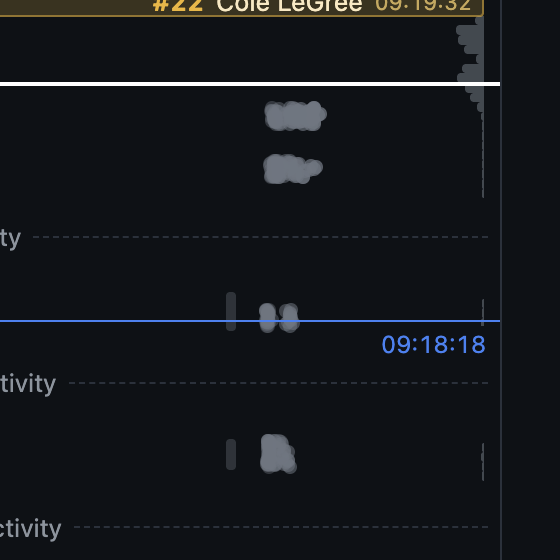
The blue line follows your cursor and is labelled on the right with the time of day under it — a ruler for reading the axis before you commit to a click.
The white line is the live playback position, labelled on the left with an arrow at the edge. It tracks the video as it plays, so you can watch a clip and see where it sits against the recorded times at the same time.
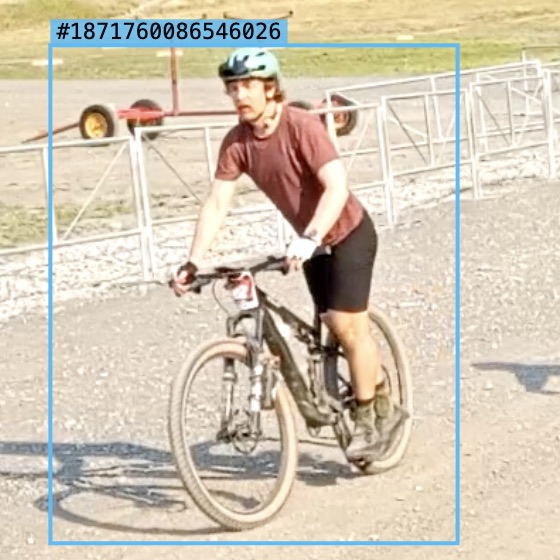
Detection boxes on the video
Each box is one thing the tracker is following, labelled with its track id. Boxes are drawn from the same data the timeline's subject bars were built from, which makes the player the place to check whether a bar you don't trust was a real racer.
Track ids are raw tracker output, not racers: one rider often fragments into several tracks as they cross the frame, so the track count under the video is never a headcount.
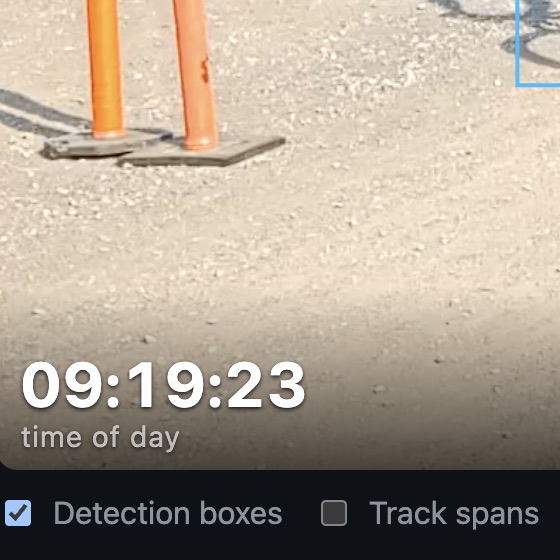
Time of day, and the toggles
The big clock on the frame is the time of day at the playhead — not elapsed clip time. It's the number to quote when you're matching footage against a recorded time.
Detection boxes turns the overlay above on and off. Track spans adds a strip below the player showing when each individual track was active within this clip. Beside them sits the tracker's own summary: how many tracks, the grid it sampled on, and its sample rate.
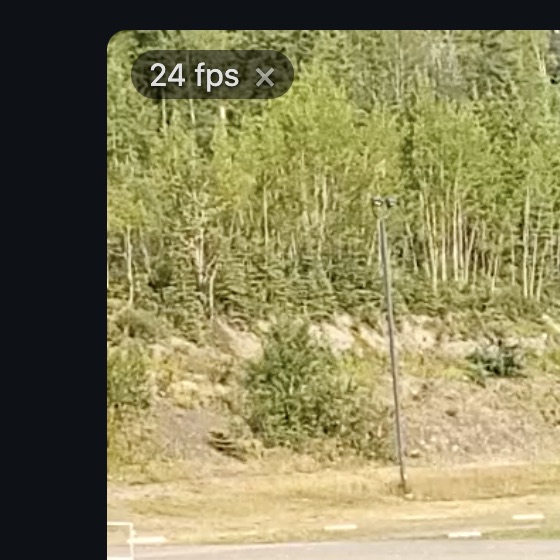
Source quality
The badge in the corner is the frame rate of the recording itself, measured as it plays. If the phone's encoder stalled while capturing — usually heat — it turns into a Low Quality Video warning and names the longest frozen stretch.
That distinction matters when footage looks choppy: those frames were never recorded, so no amount of re-watching will recover them. Dismiss the badge with its × if it's in the way.
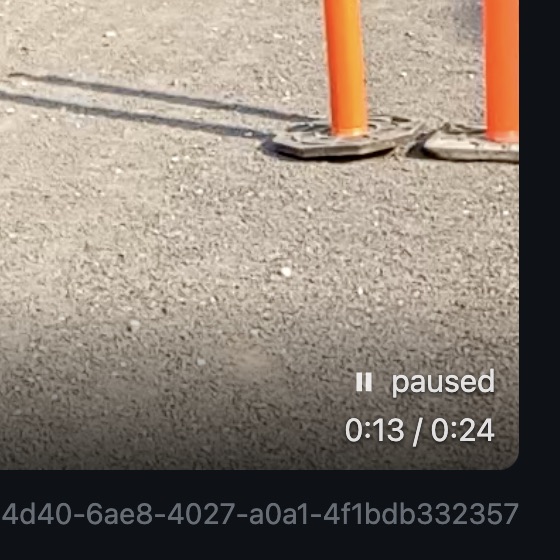
Playback state
Bottom right: whether the video is playing or paused, and how far into this stretch of footage you are. Clicking the frame toggles play; space does the same, and while paused ← / → step one frame at a time.
The faint id underneath identifies the exact piece of footage on screen — worth copying into a bug report if something looks wrong.