Phone App
Race Recorder turns an Android phone into an unattended race camera: it watches the scene, automatically records footage whenever something moves through frame, and uploads it in the background. Mount it, aim it, hit record, and leave it alone.
Download the app video.zone4.ca/recorder.apk — Android only.
Getting started
Installing the app on a new phone.
Rental phones arrive with Race Recorder already on them, and keep themselves up to date — you do not have to install anything.
On your own phone, install it yourself:
- On the phone itself, open video.zone4.ca/recorder.apk to download the app — an APK downloaded on a laptop is no use.
- Open the downloaded file. Android will ask to allow installs from your browser — approve it, then tap Install. (You may see an "unverified developer" warning; that's expected for a sideloaded app.)
- Launch Race Recorder and grant the permissions it asks for. Camera is the only one it cannot run without. Grant Precise location as Allow all the time — on "While using the app", footage recorded with the screen off is lost. Microphone and Notifications are both optional: without the mic it records without audio, and without notifications there is no recording indicator in the status bar.
- Mount or prop the phone so the camera has a clear view of the course, ideally on power for long sessions.
1. The aim screen
A live camera preview with the controls overlaid. Use it to frame the shot before you start.
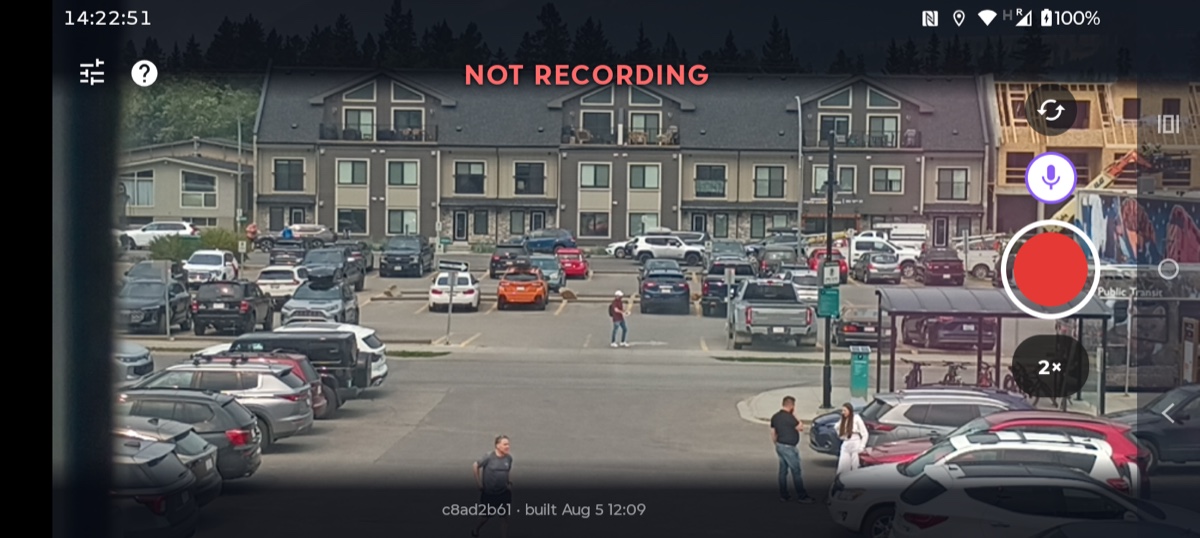
- NOT RECORDING — the band across the top. The app is idle; it is not recording or uploading anything yet.
- Record button (large red circle) — tap to start. It is the only control you need.
- Flip camera — switch between the front and rear cameras.
- Mute (microphone icon) — record without audio. Absent if the mic permission was denied.
-
Zoom (
1×) — tap to step through the preset zoom levels; press and hold for the full slider. - ? — opens the camera setup guide, which also appears by itself each time the app is launched.
- Sliders icon — detection tuning. You should not need it.
If the phone cannot record
When something stops this phone recording at all, the reason takes the place of NOT RECORDING and the record button greys out, so a tap that would do nothing looks like it will do nothing. Only one shows at a time — each of these makes the ones after it impossible to know about, so the first one is always the one to fix:
- NO CAMERA ACCESS — the camera permission was not granted. The preview is replaced by a button through to the app's settings screen; grant it there and come back.
- NO CAMERA AVAILABLE — no camera reports itself at all. On a managed phone the camera may be switched off by policy; otherwise the hardware has failed and this phone cannot be used to record.
- CAMERA WON'T OPEN — something else is holding the camera. Close any other camera app or restart the phone, then use Try again.
- CAN'T ENCODE VIDEO — the phone has a camera but nothing this app can record with. This phone cannot be used.
Warnings along the bottom
These are about what happens to footage after it is captured — the phone will still record. They stack, so three things wrong means three lines. The aim screen is the one screen with somebody standing at it, which is the moment to fix all of them:
- Cannot reach the server — nothing will upload until it can.
- App too old for the server — update the app, or nothing will upload.
- Location not "Always" — footage recorded with the screen off is lost.
- Mic permission denied — it will record without audio.
- Notifications off — no recording indicator in the status bar.
- Battery under 50% — may not last the race; under 20% it says it will not. Races run hours — put it on power.
2. While it is recording
Once you hit record the preview goes away and the phone shows a status board instead. It is built to be read at a glance, from a few metres away, by somebody walking past — so the question it answers is is this phone good to leave.
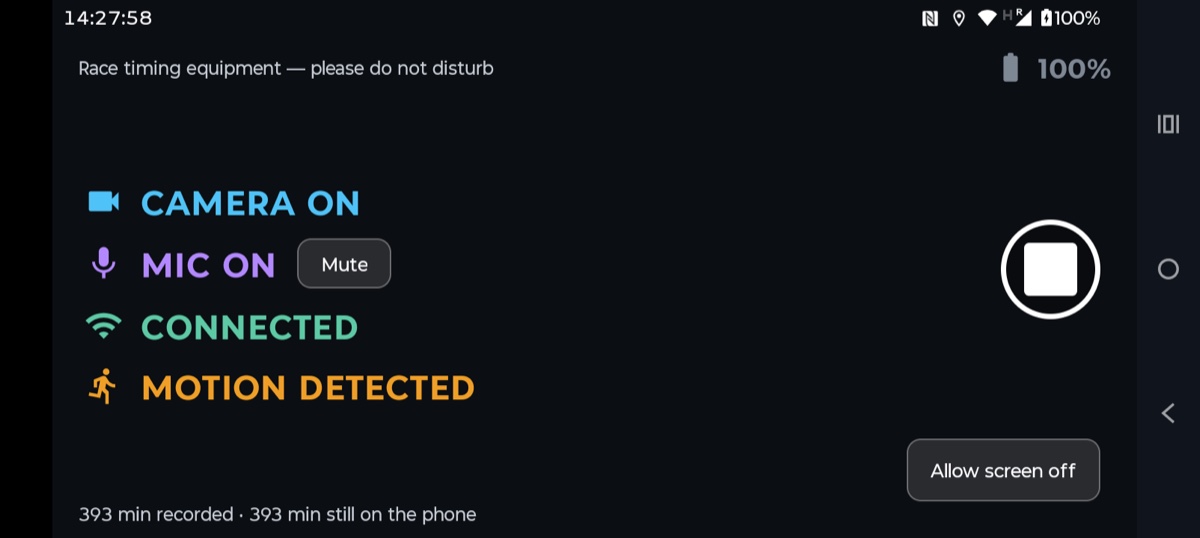
Each line has an icon that never changes colour, so the four anchors stay put; the words carry the status. There are only two status colours and no third: grey is true but not delivering, and red is wrong.
- CAMERA ON — recording. CAMERA PAUSED and CAMERA OFF mean it is not capturing; CAMERA FAILING means frames are not reaching the recorder fast enough and footage is being lost.
- MIC ON / MIC OFF — whether audio is actually being captured, not whether you asked for it. Muted is a normal state and stays in colour; grey means audio was wanted and the mic did not come up. The Mute button sits beside it.
- CONNECTED — the server is reachable. WAITING FOR SERVER means the phone is online but the server is not answering; DISCONNECTED means no network at all. When the phone is broadcasting, this line reads LIVE instead.
- MOTION DETECTED — the detector has just fired. Walk in front of the lens and watch this change: it is the end-to-end proof the detector is alive. NO MOTION YET and MOTION 12 MIN AGO are grey rather than red — a gap between waves is normal, and only somebody who knows the course can say whether it isn't.
Around the edges:
- Race timing equipment — please do not disturb — along the top, for whoever walks past.
- Battery percentage — top-right, and it turns red below 20%.
- "393 min recorded · 393 min still on the phone" — along the bottom: how much footage exists, and how much of it has not been uploaded yet.
- Allow screen off / Keep screen on — the phone keeps recording either way. Letting the screen go off saves battery.
- Stop button (white square) — ends the session and returns to the aim screen.
3. Livestreaming
The same phone can instead broadcast a continuous live feed, for an event someone is watching as it happens.
When the console authorizes a broadcast, the phone starts itself. If it is sitting on the aim screen, it flashes Going live and goes on air on its own — nobody has to press record, which is the whole point of operating it remotely.
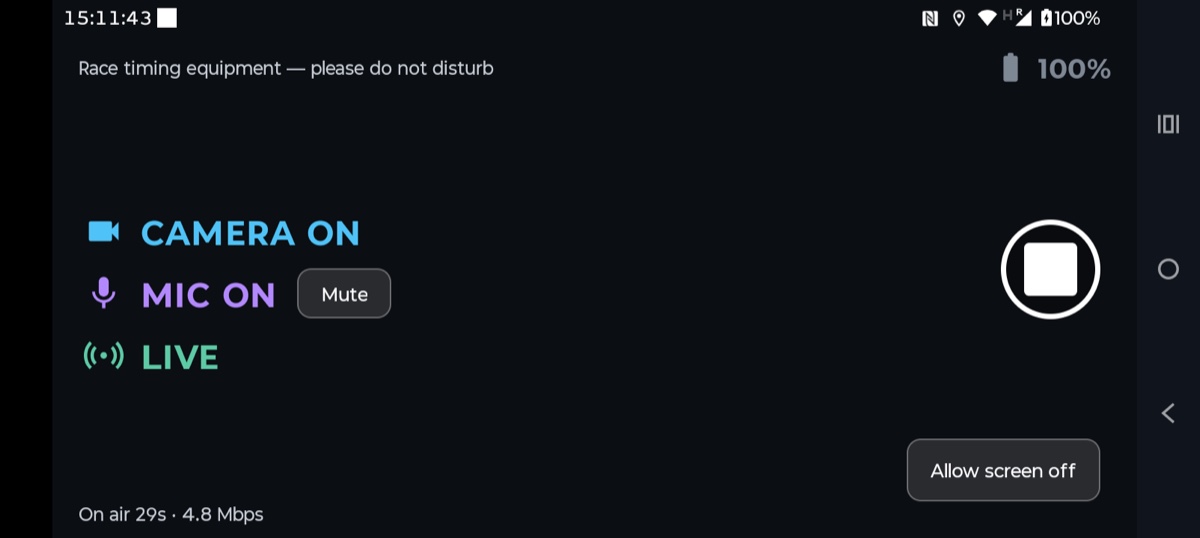
The status board changes in three ways while it is on air:
- LIVE — the network line carries the broadcast instead of the server connection. RECONNECTING means the feed dropped and it is trying to get back; OFFLINE means it is not reaching the broadcast server at all.
- The motion line disappears — the detector is not running at all while the phone is on air, so there is nothing for that line to report.
- "On air 29s · 4.8 Mbps" — along the bottom: how long it has been broadcasting, and how much data is actually going out.